Everything about the Webs Butler panel in one place: signing in, websites, the audit, your Google profile, invoices, e-mail, tools and your team. Type what you are looking for.
/
Getting started
Account, signing in, the dashboard and the panel on your phone.
Creating an account and signing in
A panel account is free and needs no card. You do not have to invent a password either.
Enter your e-mail address and click sign in. You get a message with a link: click it and you are in.
Instead of e-mail you can choose sign in with Google.
If you prefer a classic password, set one later in My account, under Signing in.
The quick site audit works even without an account: you can run one check straight away. An account unlocks the tools beyond a single use.
The dashboard: where to start
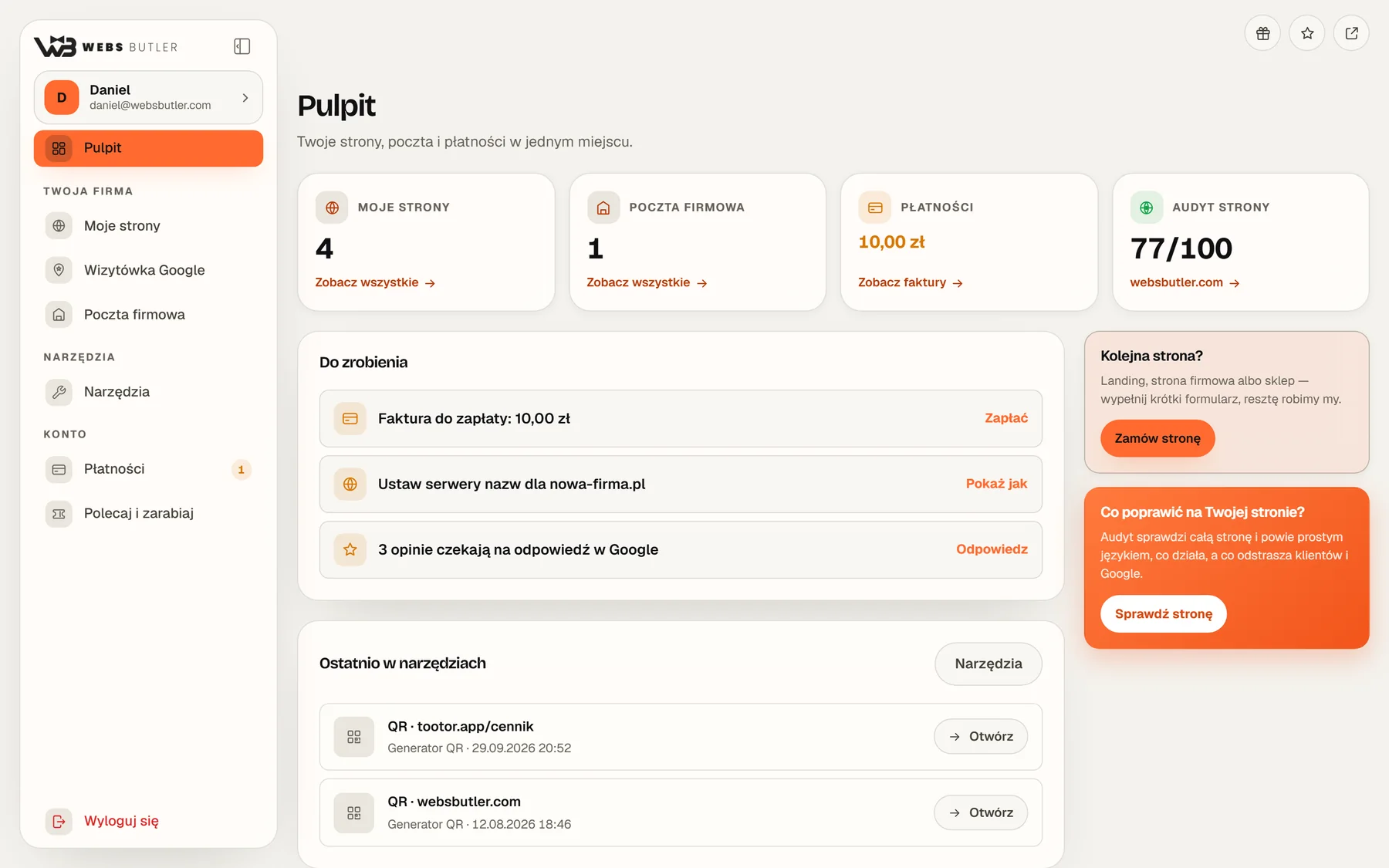
The dashboard is the panel’s start page. It only shows what matters to you today.
Tiles at the top: your websites, e-mail, billing and audit score. Click one for the details.
“To-do”: what is waiting for you, such as an unpaid invoice or a domain to connect. An empty list means there is nothing you need to do.
“Recent in the tools”: QR codes and other things you saved recently.
Light bulbs next to headings: a short explanation of what each part of the panel is for.
Cannot find something? Type it into “Search” in the menu or press Ctrl + K.
websbutler.com/klient-panel
The dashboard. Screen with sample data.
The panel on your phone, like an app
The panel works in your phone’s browser, and you can add it to your home screen and open it like any app.
Android (Chrome): open the panel, tap the three-dot menu and choose “Install app” or “Add to home screen”.
iPhone (Safari): open the panel, tap “Share” and choose “Add to Home Screen”.
My account, appearance and language
In My account (click your name at the top of the menu) you set:
Profile and company details: name, picture, tax number and address. Company details go on your invoices.
Signing in: the e-mail link always works. You can add a password or connect a Google account.
Appearance: light or dark theme, language (English or Polish) and the panel wallpaper.
My team and Notifications: described below.
Your websites
Websites, hosting, management, changes and orders.
My websites: the list and statuses
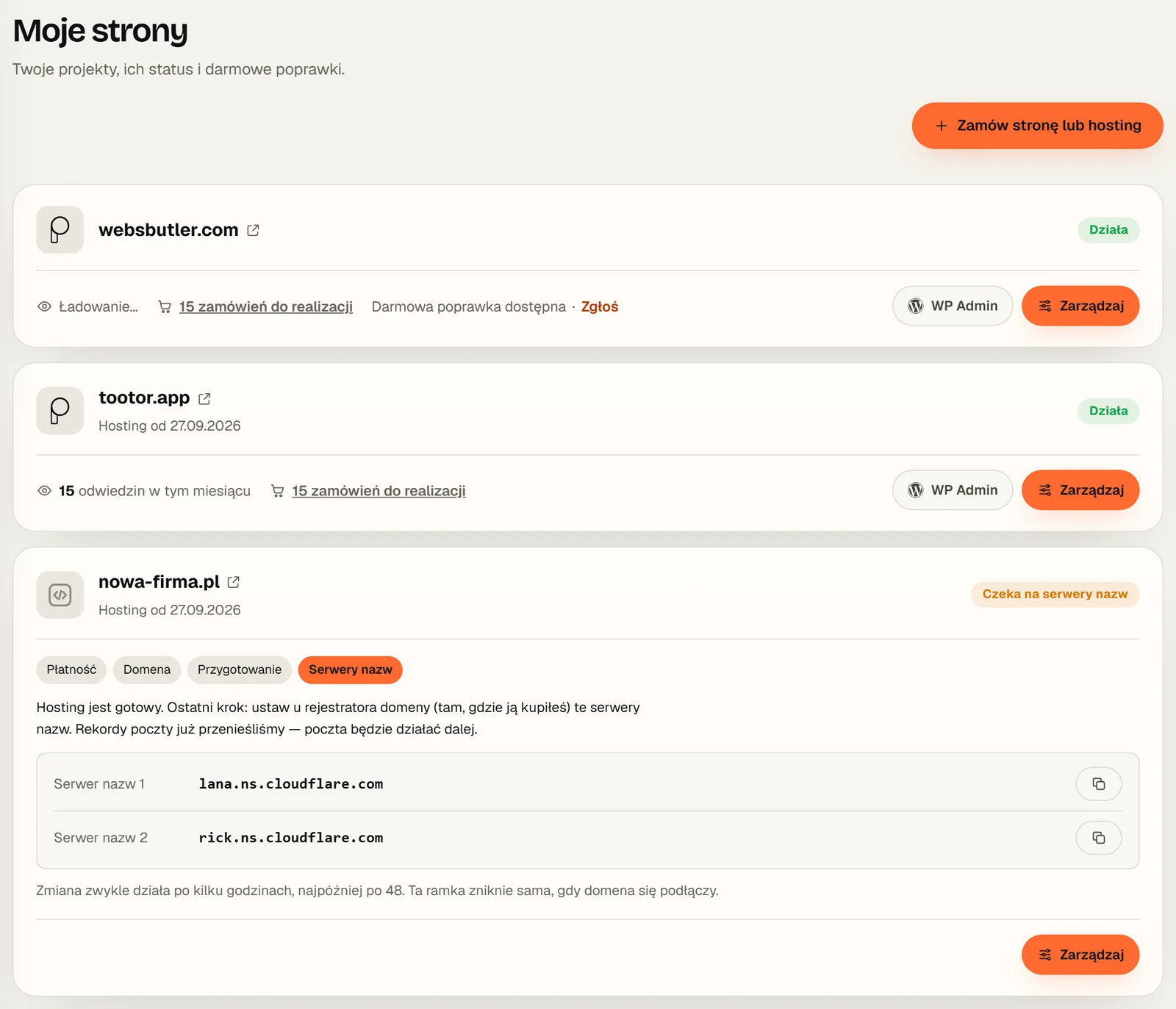
Each card is one website or domain on my hosting.
“Live” means the site is published and reachable.
A site in progress shows its stages: payment, domain, preparation, name servers, and tells you what is left to do.
Visits this month and the number of shop orders to fulfil, if you have a shop.
Three-dot menu: shortcuts to visits, backups, forms, files and revision requests.
The “Order a website or hosting” button opens the order form for another site.
websbutler.com/klient-panel/sites.php
My websites: statuses, and a domain waiting for its name servers.
Connecting a domain (name servers)
When the hosting is ready and your domain was bought from another registrar, the site card shows “Waiting for name servers” and two server addresses.
Sign in at your domain registrar, wherever you bought the domain.
Find the name server (DNS) settings for the domain.
Paste the two addresses from the site card in the panel. Copy each with the button next to it.
Save. The change usually works within a few hours, at most 48. The box in the panel disappears by itself once the domain connects.
I move your mail records before the switch, so your e-mail keeps working without a break.
Managing a website
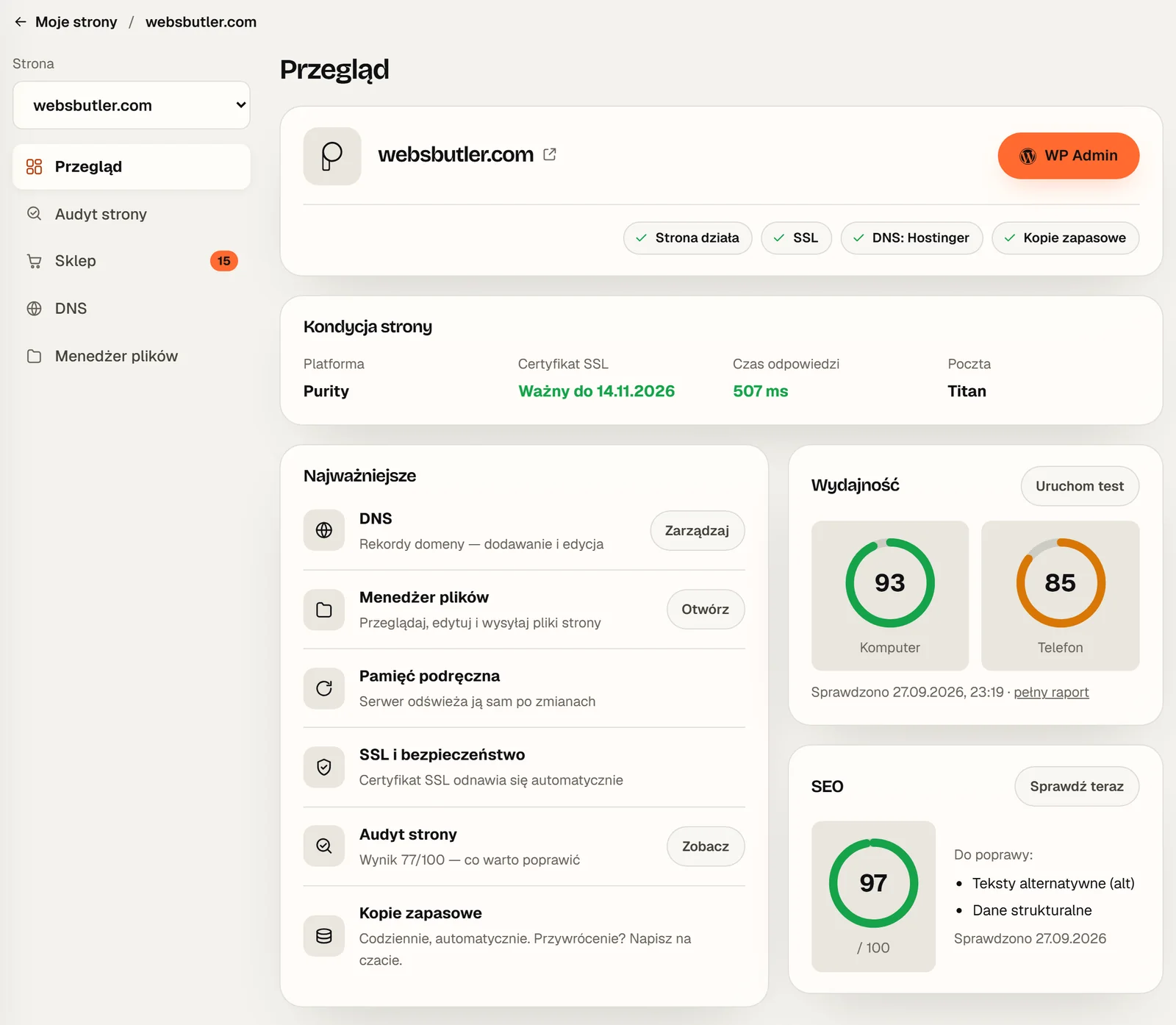
The “Manage” button opens the site’s settings. The menu only shows the parts that apply to your site:
Overview: status, SSL, performance, SEO
Statistics: site visits
Shop: orders, if you have a shop
Forms: submissions from your site
Site audit: score and list of fixes
Backups: daily copies
Blocking: block abusive addresses
SSL and security
Error log of the site
Speed: caching
Site e-mail: the mailbox your site sends from
Redirects for old addresses
DNS: domain records
File manager and database
websbutler.com/klient-panel/manage.php
Managing a website: the overview.
Signing in to WordPress without a password
The “WP Admin” button on the site card signs you in to the WordPress dashboard in one click, with no password.
It works the other way too: on sites running the Purity plugin, the WordPress dashboard has a client panel widget that takes you to the panel in one click.
Requesting a change to your site
Want to change a text, a photo or your opening hours? I will do it for you.
In My websites, open the three-dot menu next to the site.
Choose “Request a revision”.
Describe what to change. You can attach text or photos.
One change a month is included, separately for each website. An extra one costs 50 zł. The site card shows whether your free change is available.
Forms on your website
Under Manage → Forms you see every message sent through the forms on your site.
Open a submission, reply, mark it as read or delete it
With a newer version of the Purity plugin you set, for each form separately, where notifications go and a thank-you e-mail for the person who sent it
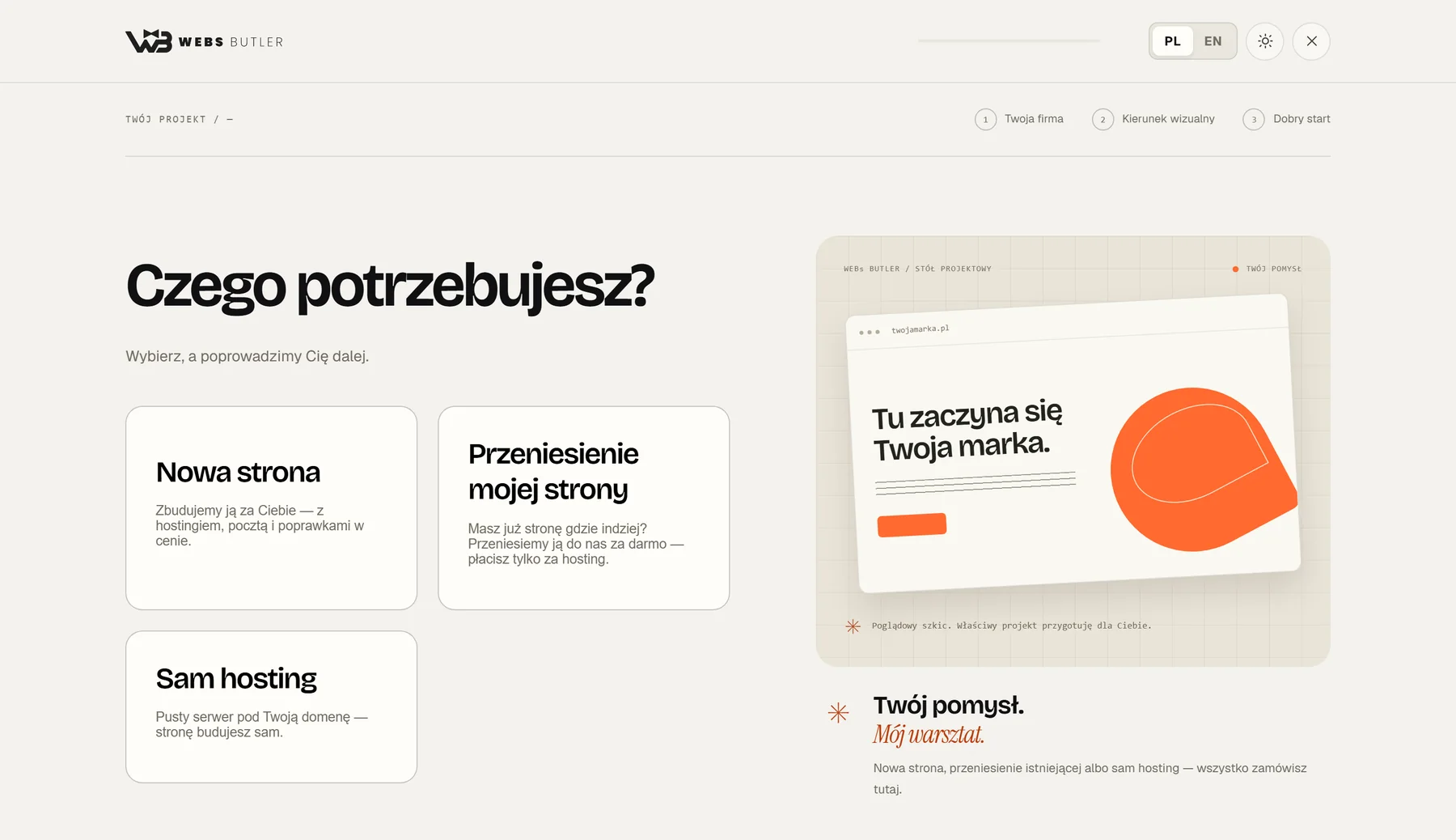
New website: I build it for you, with hosting, e-mail and changes included
Move my website: your site is elsewhere, I move it for free and you only pay for hosting
Hosting only: an empty server for your domain, you build the site yourself
The form then walks you through your business details, the visual direction and the plan. On the monthly plan you pay 0 zł to start: a card is required, but the first charge comes after 30 days. Every step has a question mark with an explanation.
websbutler.com/klient-panel/order
The first step of an order.
Google and visibility
Site audit, Google Business Profile and the ranking map.
Site audits: how to check a website
The audit goes through a site page by page and reports in plain words.
Open Tools → Site audits, or go straight to the quick audit.
Enter the website address. You can check someone else’s site too, a competitor for example.
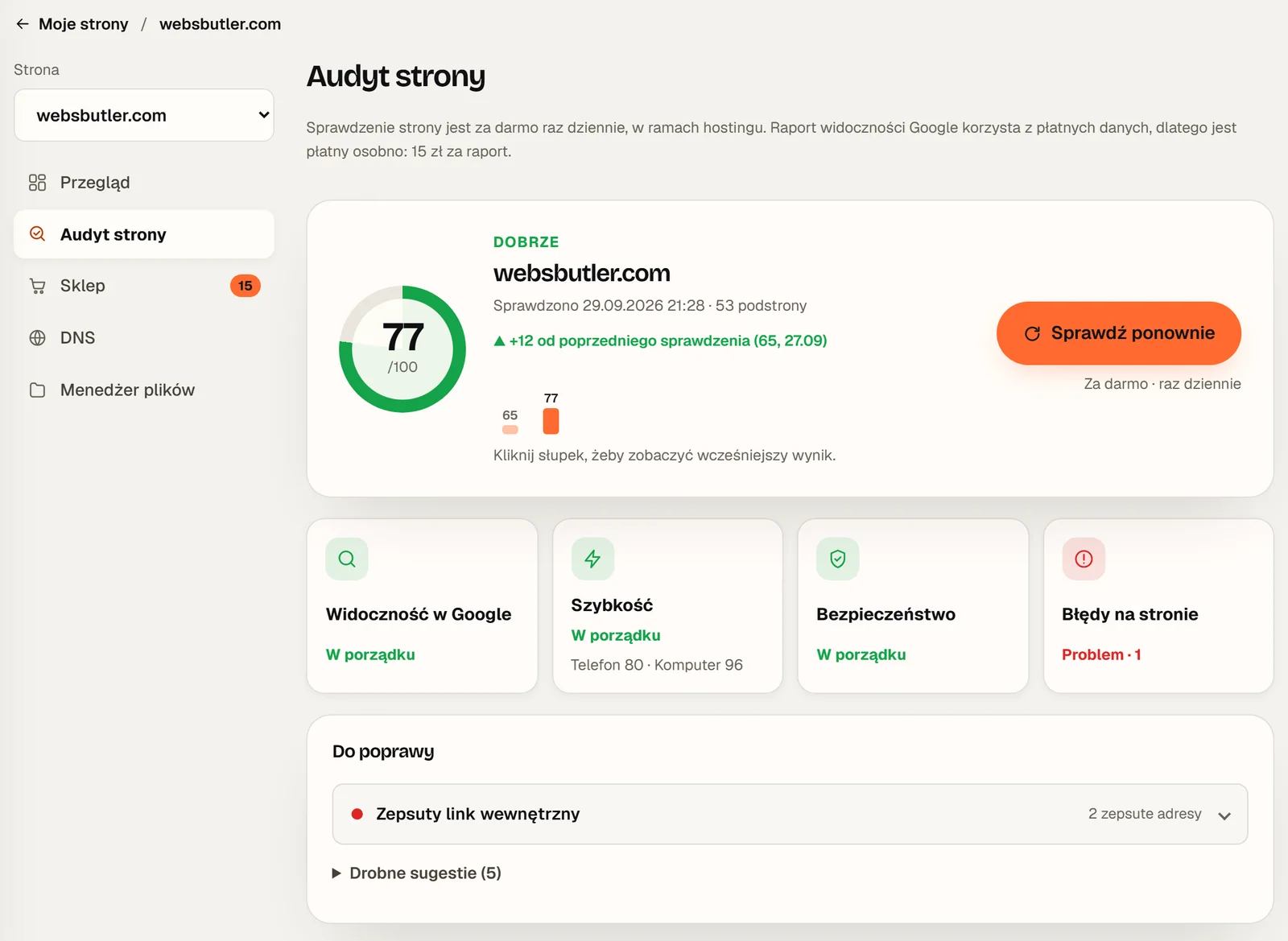
After a moment you see a score from 0 to 100 in four areas: visibility in Google, speed, security and errors on the site.
The “To fix” list starts with the most important item and gives the URLs of the pages each problem affects.
Quick audit: one check without an account
First check of any website: free
Sites on my hosting: free once a day
Visibility report for your own site: 15 zł
Full audit of any other website: 30 zł
Score history: comparison with the previous check
How to read the result is explained on the SEO audit page.
websbutler.com/klient-panel/manage.php
Site audit of websbutler.com, 29 September 2026.
Google Business Profile: reviews, photos, stats
Your Business Profile is the box with your business in Google Search and Maps. In the panel you manage it without digging through Google’s settings.
Open Google Business Profile under “Your business” in the menu.
Click connect and sign in with the Google account that manages the profile. You grant access yourself and can remove it at any time.
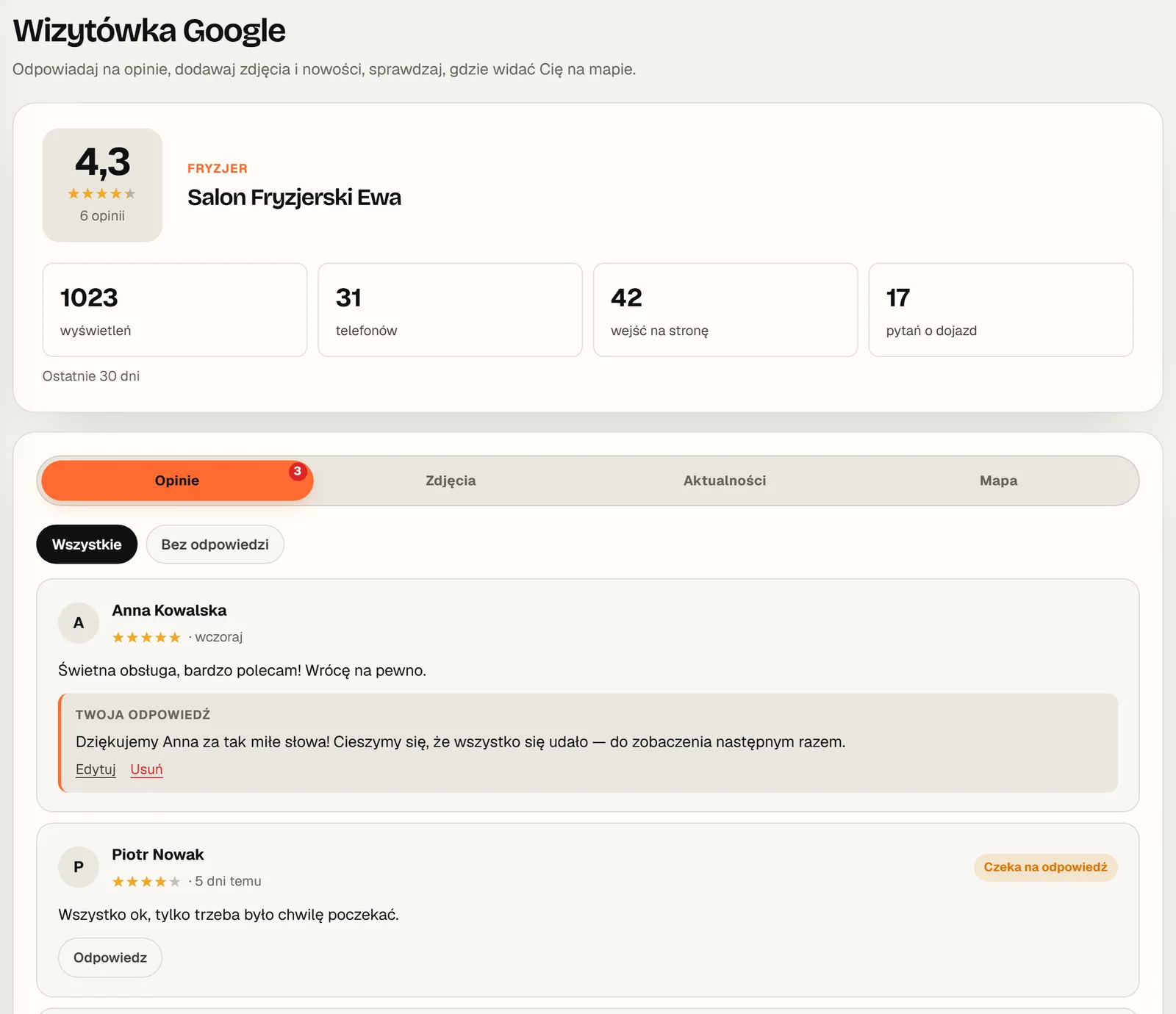
Reviews are on one list. The “Not answered” filter shows the ones waiting.
The “Suggest a reply” button drafts a reply that fits the star rating. Edit it if you like, and send.
In the same place you add photos and updates and see 30-day results: views, calls, website visits and direction requests.
Reply to critical reviews too. A calm, specific reply builds more trust than the five stars alone.
websbutler.com/klient-panel/tools/gbp.php
Google Business Profile in the panel. Sample data.
The Google Maps ranking map
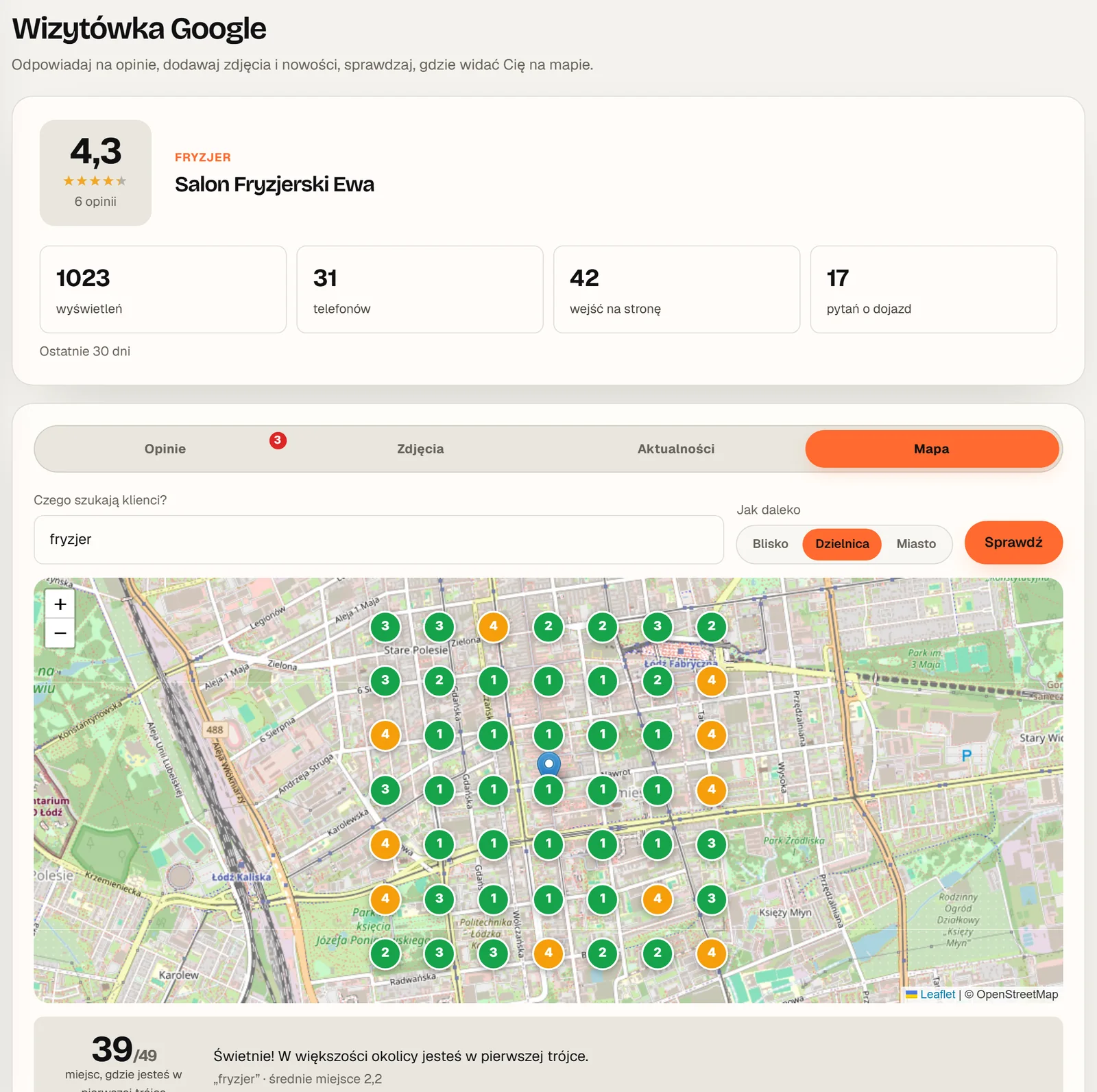
The map shows where your business ranks in Google Maps for people searching from different spots around it.
In Google Business Profile, open the ranking map.
Type the phrase customers search for, for example “hairdresser”.
Choose the radius: nearby, district or whole town.
The panel checks 49 points. The number on each dot is your position at that spot.
You get three free checks a day. The check history lets you compare “before” and “after”, for example after completing your profile.
Invoices, KSeF, newsletter, business e-mail and billing.
Finance: issuing invoices
In Finance you handle your own company’s invoices. Do not confuse it with Billing, which holds the invoices you pay me.
Finance overview: this month and who owes you what
Income: issued invoices and your customer list
Costs: cost invoices pulled from KSeF
Settings: numbering, defaults and the KSeF connection
Invoices can be in Polish, English or both. You send them to customers by e-mail from your own mailbox, which you connect once in My account.
Fill in your company details in My account first: your tax number and address go on every invoice.
KSeF: sending and receiving invoices
For Polish businesses the panel connects to KSeF, the national e-invoicing system run by the Ministry of Finance.
In the KSeF taxpayer app (Aplikacja Podatnika KSeF), generate a token or a certificate for your company.
In the panel, open Finance → Settings → KSeF and paste it in. You do this once.
On an issued invoice, click “Send to KSeF”. The panel saves the invoice’s KSeF number.
Pull in cost invoices from other businesses with the “Fetch from KSeF” button under Costs.
KSeF credentials are stored encrypted and never reach the browser. Under the Ministry of Finance’s rules a token works until the end of 2026, and from 2027 only a certificate can be used.
A newsletter for your customers
The newsletter sends messages to your customers from your own mailbox.
Messages: drafts, scheduled, sending and sent
Recipients: every customer in your Finance list who has an e-mail address
You write messages in the editor and can schedule when they go out
Only write to people who agreed to receive messages from you.
Business e-mail
Mailboxes on your own domain, such as office@yourcompany.com, instead of a Gmail address.
A 1 GB mailbox is included in your package
“Upgrade” extends a mailbox up to 10 GB
Read mail in the browser, on your phone or in your own mail program
The IMAP and SMTP server addresses are listed with each mailbox
Billing and invoices for your website
In Billing you see what you pay for and when.
Monthly subscription: what you pay each month and for which sites
Hosting: the yearly fee and renewal date
Invoices and proformas to download as PDF, each marked paid or unpaid
An unpaid invoice also shows on the dashboard
Something does not add up? Write to me and I will check and correct it.
Tools
QR generator, file compressor and e-mail verifier.
QR code generator
A QR code can open a website, join a Wi-Fi network or save a contact card to a phone.
Open Tools → QR Generator and pick the kind of code.
Enter the details, such as the website address or the Wi-Fi name and password.
Adjust the colours and add your logo.
For print, download the vector SVG version: it stays sharp at any size.
Scan the code with a phone before you print. Leave a light margin around it and keep the contrast strong. The code saves itself and waits on your list.
websbutler.com/klient-panel/tools
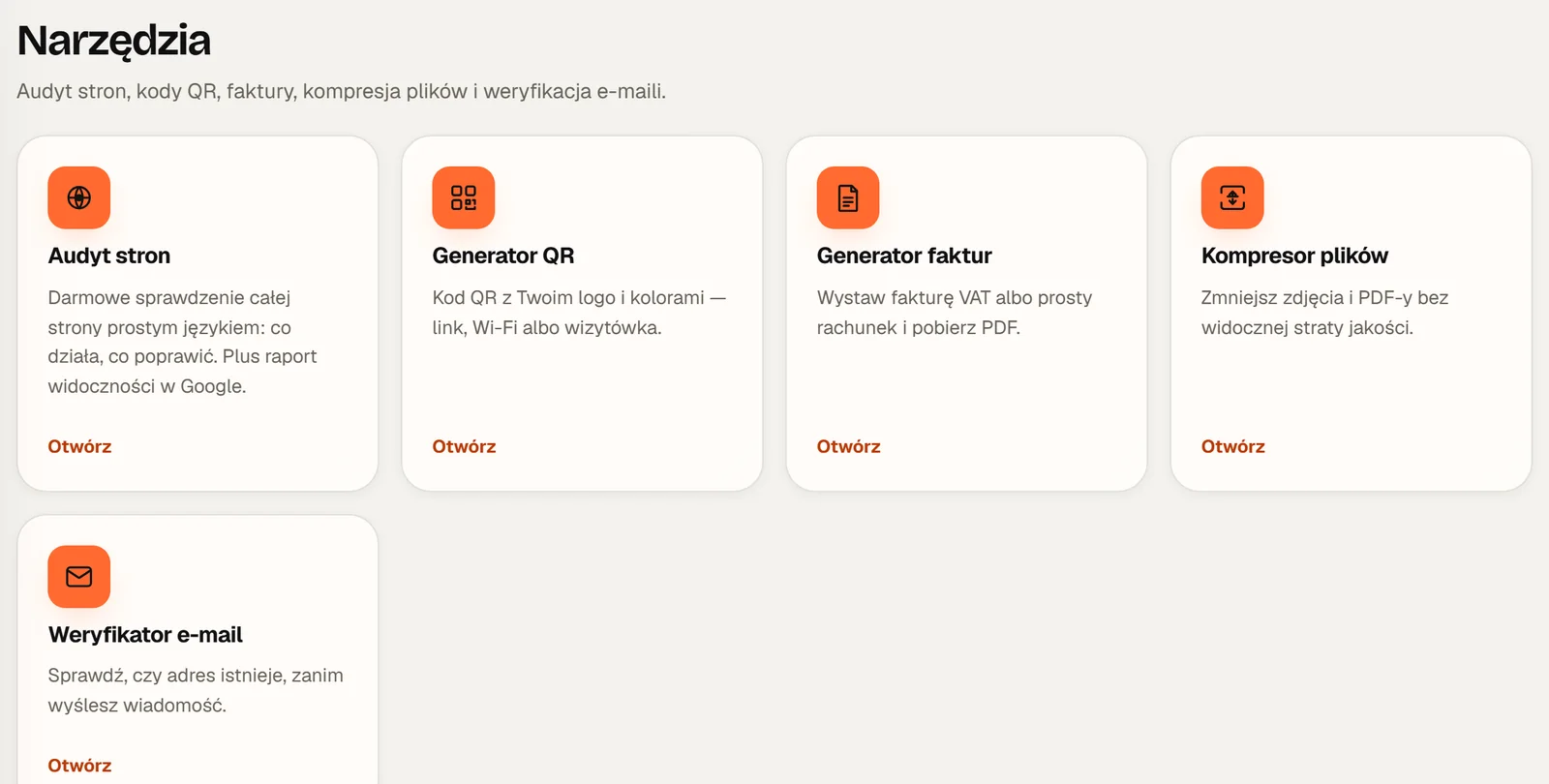
Tools in the panel.
File compressor
Shrinks images and PDFs with no visible loss of quality. Lighter images load faster on a website, and smaller PDFs are easier to e-mail.
Open Tools → File Compressor.
Drag files onto the box or click to choose them.
Each file shows how much was saved. Download the results.
Everything happens in your browser. The files are not uploaded anywhere.
E-mail verifier
Checks that an e-mail address exists and is safe to write to.
Useful before you send a quote or an invoice to an address copied from a card or a form. One typo and the message never arrives.
Account and help
Team, notifications, referrals, chat and security.
My team: access for an employee
You can invite an employee, a partner or your accountant into your account.
Open My account → My team.
Enter the e-mail address of the person you are inviting.
They sign in with their own address and work inside your account: they see your websites, e-mail and invoices.
You decide whether a team member sees Billing and Finance. Removing someone takes effect on their very next click.
E-mail notifications
In My account → Notifications you choose which e-mails you want:
News from Webs Butler
A weekly report about your website from the audit
Unsubscribe from either with one click in the e-mail footer. Service e-mails, such as invoices, sign-in links and hosting-ready notices, always arrive.
Refer and earn
If you have a website with me, you also have your own referral code. Find it under “Refer and earn”.
A friend who orders a website with your code gets their second month free
You get a 100 zł voucher
Chat and contact
Ask your question in the chat inside the panel. I reply personally and see straight away which website we are talking about.
No passwords to lose: sign in with an e-mail link or Google
Google Business Profile: you never give me your password, you grant and remove access yourself
KSeF: your token or certificate is stored encrypted
File compressor: files never leave your browser
Team: everyone has their own sign-in, and removal takes effect immediately
Common questions about the panel
Is the client panel free?
Yes. The account is free and needs no card. Only reports that use purchased data cost money: a visibility report for your own site at 15 zł and a full audit of any other website at 30 zł.
The sign-in link e-mail did not arrive. What now?
Check your spam and promotions folders. Make sure the address has no typo and ask for the link again. You can also sign in with Google.
How do I change the panel language?
In My account, under Appearance, choose English or Polish. You can switch between the light and dark theme there too.
How do I add another website to the panel?
In My websites, click “Order a website or hosting”. If your site is already with me but you cannot see it in the panel, write to me and I will add it to your account.
Can I use the panel without a website from you?
Yes. The tools, the audit, Google Business Profile and invoicing work on every account. Website management, e-mail and billing are added once you have a website or hosting with me.
Did not find your answer?
Write or call. I reply personally, usually within an hour, Monday to Saturday.