
LCPloading
3.9
How many seconds until the largest element on screen appears, usually the header image or a big headline.
Most common cause: a heavy image on the first screen, a slow server or too many scripts before the content.
Step-by-step guide14 min
Twenty checks, fifteen minutes and only free tools. Find out whether Google and AI assistants can see your site at all, what slows it down and where to start fixing.
 Daniel XhemalçeOctober 22, 2026 · 14 min read
To fix
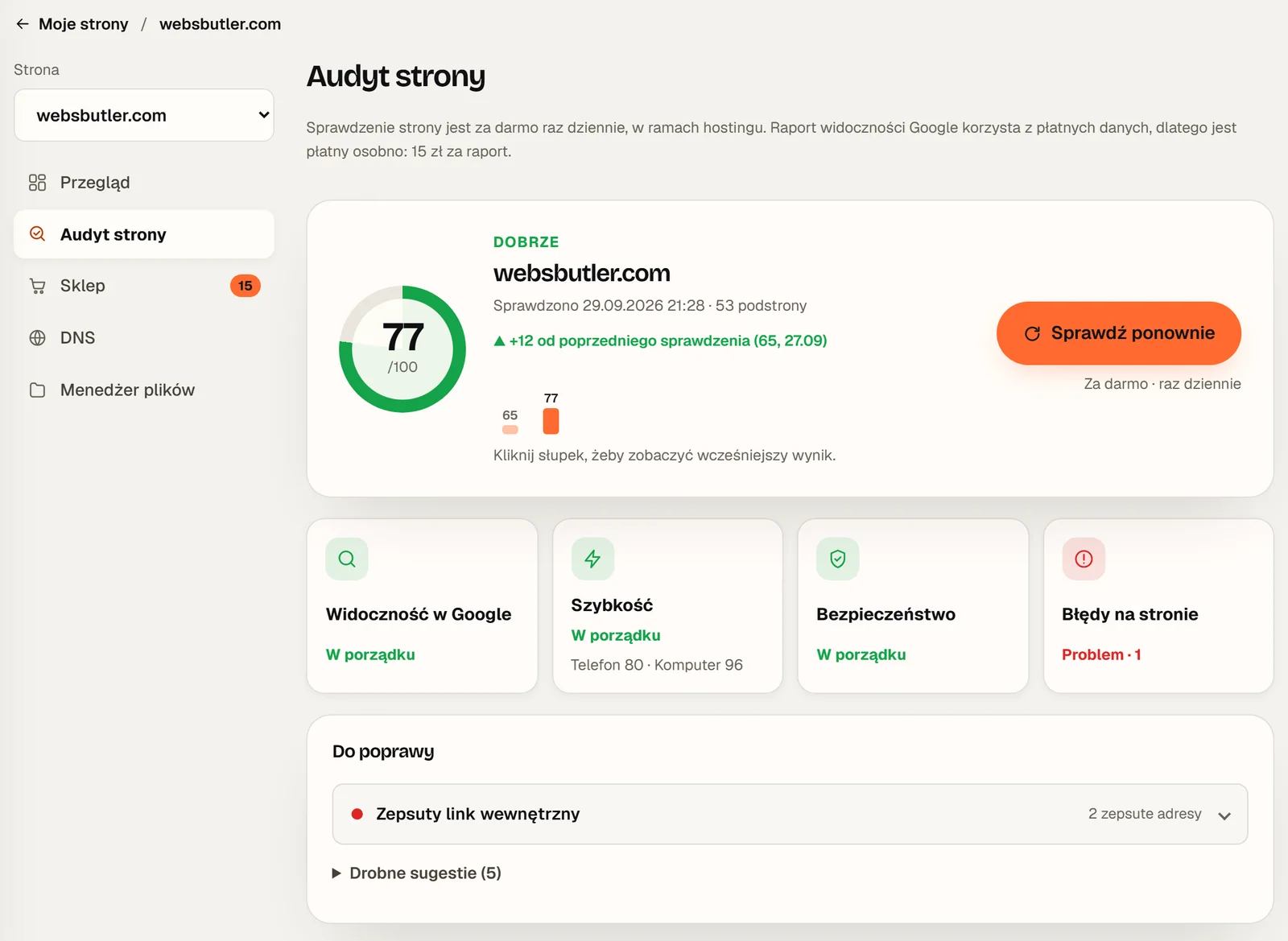
Real results from auditing my own website in the client panel. Switch to compare.
An SEO audit is a diagnosis. You check whether a search engine can find, read and understand your site, and then whether a person who lands on it stays longer than three seconds. You end up with a list of specific things to fix, ordered from the most important.
An audit is not SEO work in itself. It does not raise your rankings on its own, just as a blood test does not cure anything. Rankings improve only once you apply the fixes, and that usually takes a few weeks. That is why a good audit does not end with a score, it ends with an order of actions.
I split it into five areas: indexing (does Google see the site), content (does it understand it), speed (is it usable), security and errors (is anything broken) and local and AI visibility. The list below follows the same order.
Tick the checks one by one. Your progress is saved in this browser, so you can come back tomorrow. When something fails, note the URL of the page it concerns: you will need it when fixing.
If Google has not indexed the site, it will not show it to anyone, however good it is.
How to check: type site:yourdomain.com into Google. For detail, open the “Pages” report in Google Search Console and see which URLs are indexed, which are not and why.
A “noindex” tag or a robots.txt block left over from development is the most common reason a new site never shows up in results.
How to check: open yourdomain.com/robots.txt and make sure there is no Disallow: / line. In Search Console, run “URL Inspection” on the home page and your two most important pages.
A sitemap tells Google which pages exist and speeds up the discovery of new ones.
How to check: open yourdomain.com/sitemap.xml. If it loads, submit it under “Sitemaps” in Search Console and check that the status says “Success”.
With and without www, http and https are four different sites to a search engine. Your signals get split across several addresses instead of adding up in one.
How to check: type all four variants into the browser: http:// and https://, with and without www. Each one should redirect to the same single version.
The title is the headline of your Google result. The same title on several pages makes it harder for Google to pick the right one.
How to check: aim for 50-60 characters, put the main phrase first and the business name last. Check the length with the tool in the next chapter.
Google does not rank pages by it, but people decide whether to click based on it. It is often the cheapest way to get more visits.
How to check: write about 140-160 characters: what you offer, for whom and why it is worth a click. Avoid the same description on many pages.
Headings are the page’s table of contents for people, screen readers and search engines. Google copes with several H1s, but one clear H1 keeps the page tidy.
How to check: use a browser extension that shows headings, or the audit in the panel. Headings should step down in order, without jumping from H2 to H4.
Clear answers attract both people from Google and AI assistants, which quote the pages with the clearest answer.
How to check: write down five questions customers ask you on the phone. Each one should be answered on the site, ideally in an FAQ section.
These three metrics are how Google measures how comfortable a site is to use. A slow site loses visitors before they read anything.
How to check: paste the URL into PageSpeed Insights, choose “Mobile” and look at real-user data first. What the numbers mean is explained below.
Images are usually the heaviest part of a page and the most common cause of slow loading.
How to check: use WebP or AVIF, resize images to the width they are shown at and lazy-load everything below the first screen. The file compressor in the panel helps.
Google mainly judges the mobile version of your site, and most of your customers see it on a phone anyway.
How to check: open the site on your own phone. You can read the text without zooming, buttons are easy to tap and nothing sticks out of the screen.
Shifting elements are irritating and cause accidental taps. Google measures this with CLS.
How to check: reload the page and watch the first screen. Images, banners and ads should have their space reserved in advance, which means width and height are set.
Without HTTPS browsers show a “Not secure” warning, and contact forms stop inspiring trust.
How to check: check the padlock in the address bar on a few pages and the certificate’s expiry date. An http:// address should redirect to https://.
A link to a page that does not exist is a dead end for a customer and for Google’s crawler.
How to check: run the automated audit in the panel or the free Screaming Frog tool. In Search Console, look at the “Pages” report, “Not found (404)”.
Every redirect on the way costs a few hundred milliseconds and a little of the link’s value.
How to check: when you change a page’s URL, update the links on your site to point straight at the new address, not through the old one.
Outdated plugins are the most common way into small business websites, and Google can flag an infected site with a warning.
How to check: check “Updates” in your WordPress dashboard and the date of the last backup. A backup from six months ago is almost no backup.
For searches that include a town, the Google Maps profile is often more important than the website itself.
How to check: check the category, opening hours, photos and the link to your site. Reply to reviews, including the critical ones.
Name, address and phone written the same way on your site, your Google profile and directories build a search engine’s trust in your business.
How to check: compare your site’s footer, your Google profile and two business directories. Even “St.” versus “Street” is worth unifying.
ChatGPT, Claude and Perplexity recommend sites their crawlers can read. A blocked site does not exist for them.
How to check: do not block GPTBot, OAI-SearchBot, ClaudeBot or PerplexityBot in robots.txt. Check your server’s bot protection too: an “Are you a robot?” verification page stops them as well.
Structured data says plainly what a page is: a business, an article, a product. It helps search engines and AI describe it correctly.
How to check: test the URL with the Rich Results Test. A business site should at least have organisation data and breadcrumbs.
The title and the description are the first things people see before they even visit your site. Google does not count characters, it counts pixels: a title full of wide letters gets cut earlier than one with narrow letters. Type in your title and description and see where they would be cut.
How your result may look

On desktop Google shows roughly 600 pixels of the title and roughly 920 pixels of the description. It is an approximation: Google sometimes rewrites titles and descriptions, especially when they do not match the page.
A good title says what is on the page, not just the business name. “Web design in Leszno | WebsButler” tells more than “Home”. A good description ends with a reason to click: a concrete benefit, a price or a timeframe.
Core Web Vitals are three numbers Google uses to measure how comfortable a site is to use. What counts are real-user results, collected over 28 days. Drag the slider to see where Google draws the lines.
3.9
How many seconds until the largest element on screen appears, usually the header image or a big headline.
Most common cause: a heavy image on the first screen, a slow server or too many scripts before the content.
180
How quickly the page reacts to a tap or click, for example on the menu button or a form field.
Most common cause: heavy scripts: chat widgets, trackers and page-builder plugins doing too much at once.
0
How much the layout shifts while loading. Zero means nothing jumps.
Most common cause: images and banners without set dimensions, and fonts that swap in after loading.
The starting LCP and CLS values are my own home page on mobile in PageSpeed Insights on 29 September 2026. Yes, my LCP is on the to-fix list too.
I will not pretend my own site is perfect. In early September the automated audit in my panel gave it 54 out of 100: broken internal links, pages returning a 404 error and missing descriptions. After working through the list, on 29 September the score was 77.
The 77 itself is not the point, though. What matters is the “To fix” list with the URLs of the affected pages, because that is what tells you what to actually do. The score is mostly useful for one thing: seeing whether your changes move it in the right direction.
After an audit the list can be long. Do not fix everything at once, and do not start with the hardest part. Sort the fixes by two questions: how much will it help, and how much work is it. Pick an item to see why.
You do not need paid subscriptions to audit a small business website. These tools cover every check on the list.
The most important free tool: it shows which pages are indexed, which searches you appear for and which errors Google sees.
An automated audit in plain language: four areas, a score from 0 to 100 and a list of fixes with the URLs of the affected pages.
Speed and Core Web Vitals, separately for mobile and desktop, with real-user data.
Checks whether Google reads the structured data on a page correctly.
A desktop program that crawls your site like a bot and lists errors, titles and redirects.
Would you rather have it done for you? Create a free account in the panel: the first check of any website costs nothing, and sites on my hosting can be checked for free once a day. Here is how to read the result.
Done yourself with this list and free tools: nothing. In my panel the first check of any website is free, sites on my hosting can be checked once a day at no cost, a Google visibility report costs 15 zł (about €3.50) and a full audit of any other website 30 zł (about €7). A manual audit from an agency usually starts at a few hundred euros.
A quick check once a month and always after a bigger change, such as a redesign or new URLs. Go through the full list from this article once a quarter.
For a small business website, usually yes. Most problems I see are basics from this list: indexing, titles, images and broken links. Paid tools are useful for large shops and detailed competitor analysis.
This list takes about 15 minutes for a business site of up to 20 pages. The automated audit in the panel takes from tens of seconds to a few minutes, depending on the number of pages.
No. An audit tells you what to fix. Rankings improve only after you apply the fixes, usually after a few weeks, once Google revisits the site.
An audit is a one-off diagnosis with a list of fixes. Ongoing SEO is continuous work on content and links. I do not sell monthly SEO retainers, but I build sites with a solid foundation: fast, with tidy headings, descriptions and a sitemap.
Enter your address and the panel reads the site, measures its speed and gives you the result in plain words: what works, what to fix and where to start.
First check free. No card needed.

October 22, 2026
Looking for a web designer in your own town? Why the agency’s address matters less than you think,…

October 22, 2026
A website audit in plain words, Google review replies, a local ranking map, invoices and a QR generator…
August 7, 2026
Did you know that your website might be losing clients every day, even if you have a great…
Contents